


iPhone / Mobile Safari Support
Release notes (Alpha via TestFlight)
Welcome to Rewarded Interest on iPhone / iPad
List of inactive features
-
My Rewards
-
Earned Rewards are not active. They will activate once we have over 100,000 users.
-
ID sharing is not active.
-
Rewards disbursement screen and functionality is not active.
-
Reward-for-use tracking ID is not yet implemented.
-
-
User management.
-
Monthly statements are in development.
-
Sync settings across device is in development.
-
Restricted mode is not yet active.
-
Alternate language, currency, or location support is not yet active.
-
For clarity, the Rewarded Interest ID sharing and associated Rewards is not yet operating at this time.
Support
Installing Rewarded Interest
Rewarded Interest is available for desktop browsers and mobile Safari on the iPhone or iPad. You can download it through the Chrome Web Store here or through the Apple App Store here.
To use Rewarded Interest on iOS (iPhone or iPad), first use the app store on your device to install it.
Once downloaded, activating Rewarded Interest is a four step process:
-
Accept the Terms of Service
-
Activate the extension – Apple requires that you turn on the extension in the Safari app settings via the Settings app or via Safari's contextual menu.
-
Enable permissions – Allow Rewarded Interest to run on all websites. Select "Allow all" in Settings → App Settings → Safari → Extensions → Rewarded Interest under "permissions" to enable Rewarded Interest as you browse.
-
Set your consent preferences – Choose your default consent choices so they can be automatically set as you browse the web. (Required in select jurisdictions)
There is an option to activate Rewarded Interest directly from mobile Safari once you have accepted the Terms of Service.
Accepting the Terms of Service
Welcome
When you open the Rewarded Interest app for the first time, there is a message welcoming you to the extension and allowing you to read and accept the terms of service. Rewarded Interest's Terms of Service are available at https://www.rewardedinterest.com/tos.
Tutorial

Activating the extension
Rewarded Interest needs to interact with all websites in Safari to function. Apple requires you manually activate the extension.
When you install, the extension will show you a page with instructions to activate the extension.

Activate Rewarded Interest Instructions
Once completed, you must permission the extension so it can take action on the websites you visit. This includes dismissing cookie popups, blocking trackers, and sharing your advertising ID.

Permission Rewarded Interest Instructions
Once done, the extension will automatically open.
Accessing the extension once installed
Once active and permissioned, you can access Rewarded Interest by clicking on the context menu on the navigation bar and then clicking Rewarded Interest..

Context menu on iOS 26+

Rewarded Interest in the Context Menu
Welcome and Tutorial
Welcome
Once you have successfully set up Rewarded Interest, you will see the Welcome overlay:

Tutorial
When you first use Rewarded Interest, there is a tutorial that introduces you to the areas of the app. You can click next to run through the screens or exit the tutorial by clicking the blue (x) at the top right of the tutorial overlay.

Tutorial
Home Page

The Home Page provides a summary view of achievements, Rewards balance and time saved. It provides quick access to common actions such as adoption on another device or sharing invitations with others.
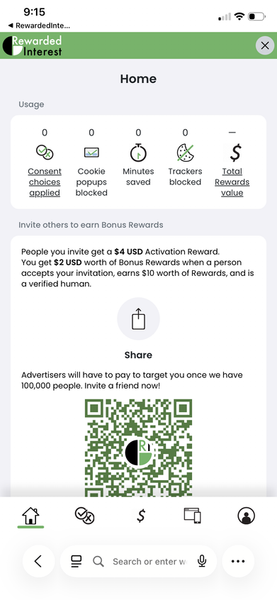
Home Page
Achievements
The achievements section shows:
-
Consent choices applied – how many pages did you visit where your consent choices were applied
-
Cookie popups blocked – an estimate of how many cookie consent popups were skipped as you have browsed the web.
-
Minutes saved – how many minutes you have saved by avoiding reading, considering your privacy choices and applying them. The minutes saved estimate assumes five seconds per cookie popup skipped.
-
Trackers blocked – how many cookies or javascript callouts ("trackers") were blocked in enforcing your consent choices.
-
Total Rewards Value – how much you have earned as Rewards, both pending and available, over the lifetime of using Rewarded Interest. This is the sum of all Rewards you have earned and does not take into account any Rewards that you have redeemed.
Note: some values may take time to update in the user interface. For example, the Rewards amount may be delayed because companies that show you personalized ads take time to report their spend to us. It may take up to 45 days for all credits to appear.
Additional notifications
You may see an icon indicating you are not earning Rewards. This icon will appear if you have disabled your ID, if the vendors that provide Rewards are restricted by your settings, or if you have blocked purposes that impact your earning of Rewards.
Consent Choices Applied (link)
The "Consent Choices Applied" link brings you to the My Consent tab.
Total Rewards Value (link)
The "Total Rewards Value" link brings you to the My Rewards tab.
Invite others to earn Bonus Rewards
The bottom of the home page provides a share button to make it easy to share Rewarded Interest with your friends. Send via Messages, via email, or through your favorite social media apps.
A QR code can be used to add additional devices of your own or shown to nearby friend to scan for quick access to Rewarded Interest in the App Store..
Share button
Use the share button to share an invitation with friends through your favorite email text or chat app.
QR Code
Share Rewarded Interest with a friend in real-time by showing them your QR code.
Quick access menu
You can access Rewarded Interest while visiting any wedsite to quickly see your achievements or change your settings. The menu is available next to the address in the address bar. Touch to raise it.

Enable Rewarded Interest on current Site
Located under your achievements in the quick-access view, you can quickly enable or disable automatic consent for the current site you are viewing.
Share Rewarded Interest
In the center of the quick access menu is a share button. Use it to send limited time invitations that include an Activation Bonus for friends and colleagues. When they join and have earned more than $10 USD worth of Rewards, you receive an Invite Bonus.
Report a cookie banner button
When clicked, a report is sent to Rewarded Interest that there is a consent dialog on the page that was not automatically dismissed.
More settings button
When clicked, you will be taken to the full Rewarded Interest functionality.
My Consent Choices
Automatic consent
My Consent allows you to review and set your consent preferences related to both purposes (tracking, targeting, customizing content, hyperlocal) and vendors (companies that participate in the ad tech ecosystem and may make use of your data).

Consent Management
Use the toggle button at the top to turn automatic consent on or off. If on, Rewarded Interest will automatically express and enforce your consent choices at each web site you go to. We will also attempt to block or quickly dismiss any cookie consent popups that would otherwise be shown and block your access. If off, Rewarded Interest will not take any of these actions.

Default consent choices
Your default consent choices are applied to all sites for which you do not have a site specific consent selection.
Selecting consent preferences
Your consent choices are what determine the activities that companies can do with your personal information and which companies can do those activities. Activities are sometimes referred to as "purposes" and the companies are sometimes referred to as "vendors".
There are four options for your Purpose preferences and four options for your Vendor preferences
What activities companies are allowed to do....
Which companies are allowed to do those activities…
Allow all sets the individual permissions for each use or purpose to most permissive. This is typically "enabled" for each of the purposes with the exception of negative behavior items such as "Do not sell".
Allow all enables all vendors to receive identifiers and associated data about you.
Reject all sets the individual permissions to least permissive. This is typically "disabled" for each of the purposes with the exception of negative behavior items such as "Do not sell".
Reject all disables all vendors from receiving identifiers and associated data about you.
Optimized for Rewards sets the individual permissions to get you the most value for advertising from Partners that agree to pay you Rewards. The purposes that are enabled by Optimized for Rewards may change over time. Rewarded Interest will manage them automatically to maximize your Earned Rewards.
Optimized for Rewards sets active the set of vendors that have agreed to pay to show you personalized ads. These companies gain the ability to build profiles and use the information they collect in association with your advertising ID. They must share 5% of their media costs with you when they use the ID.
Customize activities companies can do
Clicking the "Customize..." button under the "What activities companies are allowed to do" column lets you make individual choices regarding each supported purpose.

Custom selection interface for what companies can do
The "Set to" buttons that consist of "Allow all" "Reject all" and "Optimized for Rewards" at the top of the custom purposes selection interface will change the selection for all of the individual permissions. These buttons are provided for convenience. You can always change individual permissions after clicking one of these buttons.
Allow all sets all permissions to "allowed," with the exception of negative behavior items such as "Do not sell."
Reject all set the permissions "disabled," with the exception of negative behavior items such as "Do not sell."
Optimized for Rewards sets the permissions to get you the most value for personalized ads from companies that agree to pay you Rewards. These specific settings may change over time depending on how advertisers use IDs to target ads.
The individual permissions are grouped into four categories to make them easier to comprehend. These categories are defined by the European Interactive Advertising Bureau.
For each activity there is a description of that activity. These descriptions are based on the standards defined by the European Interactive Advertising Bureau.
The buttons on the bottom of the page allow you to:
Cancel – any selections or changes will not be applied.
Save – your selected purposes will be saved and applied whenever you have selected "Customized" as your setting for purposes going forward.
Resolving internal settings conflicts
There are some consent choice settings that do not work in combination with each other. To ensure you are protected, Rewarded Interest automatically disables certain IAB based consent elements when you select "Do Not Sell / Global Privacy Control." Specifically, we disable the following:
-
Technology > marketing
-
Technology > measurement
-
Purpose based > Advertising > Create profiles for personalized advertising
-
Purpose based > Advertising personalization > Use profiles for personalized advertising
-
Purpose based > Analytics > Measure advertising performance
-
Provision of the Rewarded Interest advertising ID
If you attempt to set a combination that is not compatible either as your default or site specific consent choices, the extension will show an error message.
To resolve the conflict, choose either to "Keep DNS / GPC" to maintain the Do Not Sell / Global Privacy Control option. Or, select to "Disable DNS / GPC" to keep the consent options you have selected.
Rewarded Interest will not express or enforce your consent choices until the conflict is resolved.
Conflicts with third party extension settings
Other extensions you may have installed can express the Global Privacy Control (GPC) signal to websites.
Rewarded Interest will detect if you have a conflicting extension that is asserting GPC. For more information on these conflicts and how to resolve them, see Resolving Conflicting Settings.
Conflicts with browser-based settings
Browsers can set certain settings that may impact your consent such as Do Not Track.
Rewarded Interest will detect if you have "Do Not Track" (DNT) enabled via your browser. Rather than setting DNT to "on" through your browser, we recommend setting your default consent settings to "Block All". In this configuration, Rewarded Interest can actively block third party trackers in addition to passing the consent signal for Do Not Sell / Global-privacy-control to inform all websites not to track you.
Customize which companies can use your identity (vendors) selection
Clicking the "Customize..." button under the "Which companies are allowed..." column lets you select vendor by vendor preferences.
Custom vendor selection interface.

In the custom vendor selection UI you can include or exclude individual companies. Three buttons at the top allow you to select 'All', 'None', or 'Optimized for Rewards'. These buttons pre-select the vendors that are set to active in the list, and you can modify these selections.
You can Search for a specific vendor.
You can sort the list of vendors by name or whether or not the vendor supports your earning of Rewards.
The toggle, "Enable new recommended vendors," if active, will enable any new vendors that support your earning of Rewards.
The buttons on the bottom of the page allow you to:
Cancel – any selections or changes will not be applied.
Save – your selected changes will be applied when you have selected "Customized" as your setting for vendors going forward.
Application of Consent
When enabled, the application of your consent preferences is attempted on every page you visit. The application of consent preferences is done through multiple mechanisms:
Purpose based consent (what can companies do with and what data they can associate with your identity):
-
When the Consent Management Platform (CMP) has in-page APIs, we set your purpose based consent via the CMP's APIs
-
When the CMP does not have in-page APIs, we block the CMP and initially no consent is set (implied block all).
-
An on-page API (using the IAB's Transparency and Consent Framework, TCF) is written to the page by Rewarded Interest. The CMP and any third-party scripts can read this API and retrieve your purpose based privacy preferences.
-
If you opt to block all purposes or use the "Do Not Sell" feature, Rewarded Interest will also pass the Global Privacy Control signal.
Vendor based consent (which companies can use your identity for the purposes you have allowed through your purposes choices):
-
Rewarded Interest blocks ad tech vendors (based on the IAB Global Vendor List) you don't explicitly allow from writing 3rd party cookies
-
An on-page API (using the IAB's Transparency and Consent Framework, TCF) is written to the page by Rewarded Interest that a sites Consent Management Platform and any third-party scripts can read and apply your vendor privacy preferences.
-
Rewarded Interest blocks ad tech vendors (based on the IAB Global Vendor List) you don't explicitly allow from using local storage or [future] executing javascript according to your privacy preferences.
Consent history
You can view the consent choices you applied when you last visited a site in the History section. Your consent history shows actions associated with your most recent 2,000 sites.
Clicking on a given site allows you to change the consent settings for that specific site. The new settings will be applied the next time you visit that site.

View consent history
Sites are shown in order of most recent visit. You can search for a site that you have visited and you can view the consent choices that were set for Purposes and Vendors.
My Rewards

The My Rewards page allows you to view your Rewards and manage the availability of your Rewarded Interest ID. Note: This feature is not yet enabled.

My Rewards
Pausing the ID
You can pause and un-pause your Rewarded Interest ID at any time. Pausing your ID stops Rewarded Interest from sharing your ID with any vendors on any sites you visit. It does not undo or erase any historical sharing or collection of data in associated with your ID.
Resetting the ID
You can reset your Rewarded Interest ID at any time. Resetting your ID generates a new Rewarded Interest ID for you. Your previous ID is never shared again and any data that advertisers or companies associated with that ID should no longer be usable. We restrict reassociation of historical information with new IDs in our Policies.
Please note, when you reset your ID, the amount advertisers spend to target you may decrease until they collect new data associated with your new ID. While this happens, the amount you earn as Rewards will also be reduced. Your earning of Rewards should increase over time as advertisers and other companies learn about your preferences and associate them with your new ID.
Resetting your ID is immediate for the current device you are using. Other devices will get the new ID within an hour of resetting your ID.
Redeeming Rewards (from My Rewards Page)
Note: Reward redemption features are currently in development. The redeem Rewards overlay allows you to convert your Rewards through various services.
To redeem your Rewards, you must log in or sign up to Rewarded Interest, have at least $10 in Earned Rewards, and be a verified human.
Advertisers pay to show you personalized ads. Learn more...
Devices and Sharing
The My Devices page allows you to add and manage different instances of Rewarded Interest on various devices and to invite others to use Rewarded Interest. It also lets you send invitations to join Rewarded Interest so you can give Activation Bonuses to your friends and get Invite Bonuses yourself.

Devices Page
Enrolled Browsers & Devices
When you are logged in to Rewarded Interest, you can see and remove any other instances of the Rewarded Interest extension. Each device is listed with the name of browser and the operating system of the device.
You can remove devices from your account by clicking the yellow circle next to a given device. Removing a device disassociates it from your account and resets the device instance. You cannot remove your current device from your account.

Sharing Rewarded Interest
Don't keep the joy of collecting Rewards, skipping cookie popups and blocking trackers to yourself! It's easy to share Rewarded Interest with others and earn Bonus Rewards in the process.
Email a link to install the extension
Send a friend an email inviting them to use Rewarded Interest.
My Account
The Account page allows you to login and to configure Rewarded Interest settings.

Account Page
Sign up or Log in
You can sign up or log in to Rewarded Interest. Logging in allows you to:
-
synchronize your consent preferences across devices
-
receive monthly statements
-
consolidate earned Rewards
-
see your Rewards balance across devices
-
redeem Rewards
-
enable Restricted mode
Settings
Monthly statement via email – When checked, you will receive a monthly email showing information about your usage of Rewarded Interest. Note: you must be logged into Rewarded Interest to receive these emails.
Sync settings across devices – When checked, your consent preferences, language, and location are shared across your devices. Pausing or enabling your ID is specific to each of your devices. Resetting your ID applies to all devices associated with your account.
Note: you must be logged into Rewarded Interest to sync your settings.
Show notifications – When checked, you will see on-screen notifications from Rewarded Interest when your consent preferences are applied as you browse the web.
Restricted mode – When selected, restricted mode is active. See restricted mode for more information.
Language – Select your desired language. Support for additional languages will be added over time.
Location – Select your desired location. The location selected will impact certain features to ensure compliance with local regulations.
Currency – Select the currency in which you would like to see your Rewards. Please note, Rewards are not currency and are shown as a currency equivalent for ease of understanding. Rewards can be exchanged on a one-for-one basis with the US dollar. Any conversions to other currencies are for display purposes only and use the following day's exchange rate.
Removing the extension
You can uninstall the Rewarded Interest extension at any time. Removing the extension will stop it from functioning. Site specific consent policies and your history of consent being applied will be deleted. Any synced settings or earned Rewards will be maintained by Rewarded Interest in association with your account. You can always reinstall and log in to re-associate your installation with your account.
Account: Restricted Mode
As a convenience for parents or guardians, Rewarded Interest has a special mode to add protections for minors who cannot legally consent or earn Rewards. Only adults can sign up to Rewarded Interest.

Restricted mode
Restricted mode is designed to protect minors by allowing parents or guardians to place a browser in a restricted operational mode. You must be logged in to activate Restricted Mode.
In Restricted Mode:
-
No Rewarded Interest ID is shared
-
No Rewards are earned
-
Consent settings are set to block all vendors
-
Consent settings are set to block all but required purposes
Activating Restricted Mode
You can enable Restricted Mode by navigating to the My Account page and clicking the restricted mode button located within the list of settings.
You will be presented with a dialog asking for a four digit number (i.e., a PIN). You choose your own PIN. This number will be required if you want to disable restricted mode in the future. Once a code is entered, Restricted Mode is activated.

Deactivating Restricted Mode
You can disable Restricted Mode by navigating to the Account page and clicking the Restricted Mode button located within the list of settings.
You will be presented with a dialog asking for a four digit number (i.e., a PIN). Enter the same number you entered when activating Restricted Mode. Once the correct code is entered, Restricted Mode is deactivated.
If you forget your 4-digit PIN and need to deactivate Restricted Mode, the PIN cannot be reset. You will need to uninstall and reinstall Rewarded Interest.
Have a question or need help and can't find an answer here? Contact us at: support@rewardedinterest.com
We'd love to hear from you.